Managing Resources
In EDP, users can browse lists of current resources in an environment, filtering and combining them in groups.
Runtimes
The option Runtimes opens a list of all available runtimes in an environment, indicating whether they are on- or offline and the groups to which they belong. Users can search specific runtimes and filter them according to their status and property values.
The possibility to connect new runtimes to the system is also offered. For more information, see section Registering a New Device.
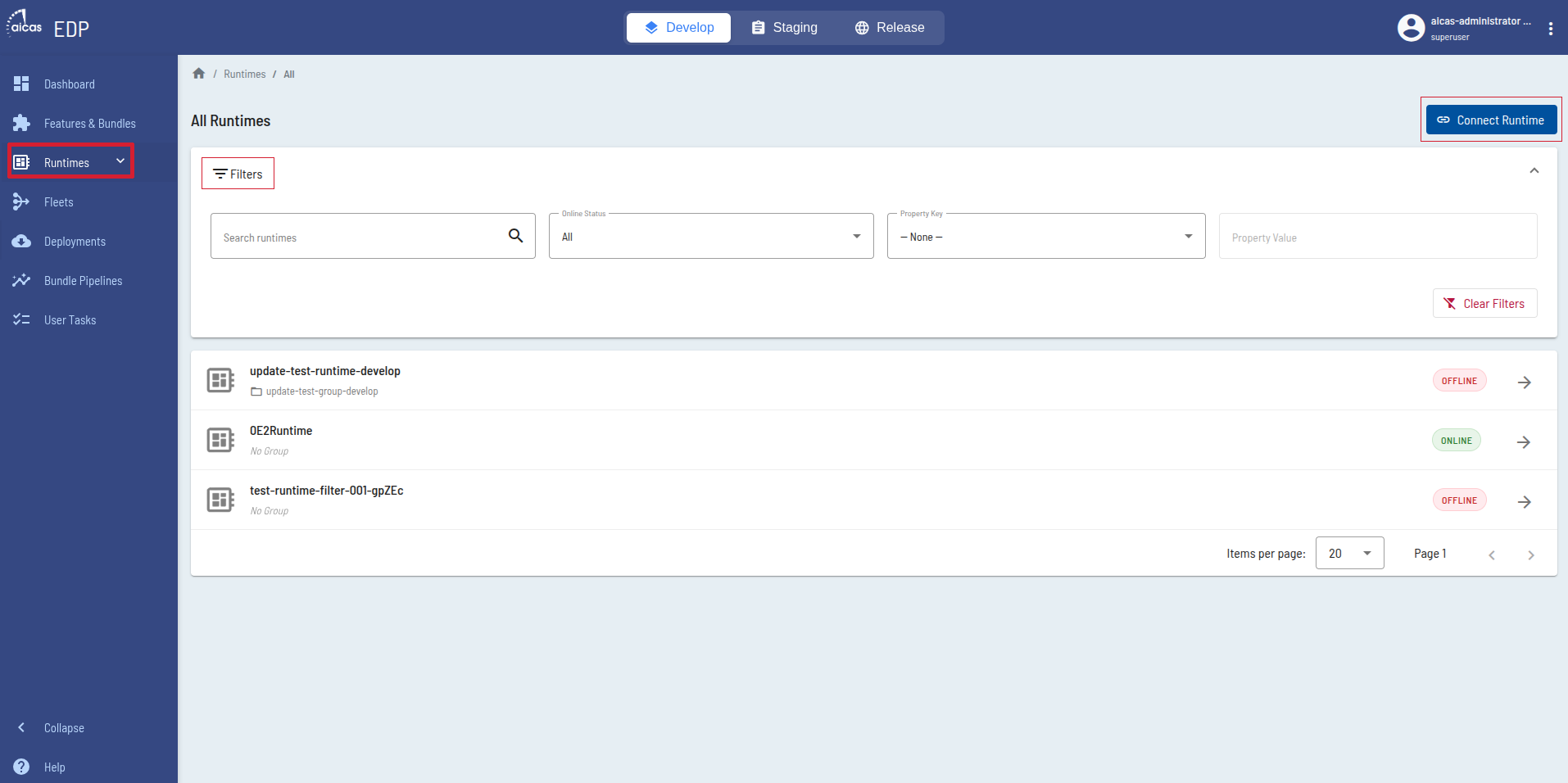
List of all runtimes available.
By selecting a single runtime out of the list, its status is displayed: type, architecture, operating system, runtime name and version are shown.
The bundles installed on the chosen runtime are listed, and basic information such as id, symbolic name and version is displayed. In the context of the OSGi specification, a bundle’s symbolic name, together with its version, serves as its unique identifier.
The state of the bundles, which reflects their life cycle (STARTING, ACTIVE, RESOLVED, INSTALLED), is also shown, as are the possible actions related to each bundle: start, stop, uninstall. Note that users can only opt to uninstall a bundle once this has been previously stopped.
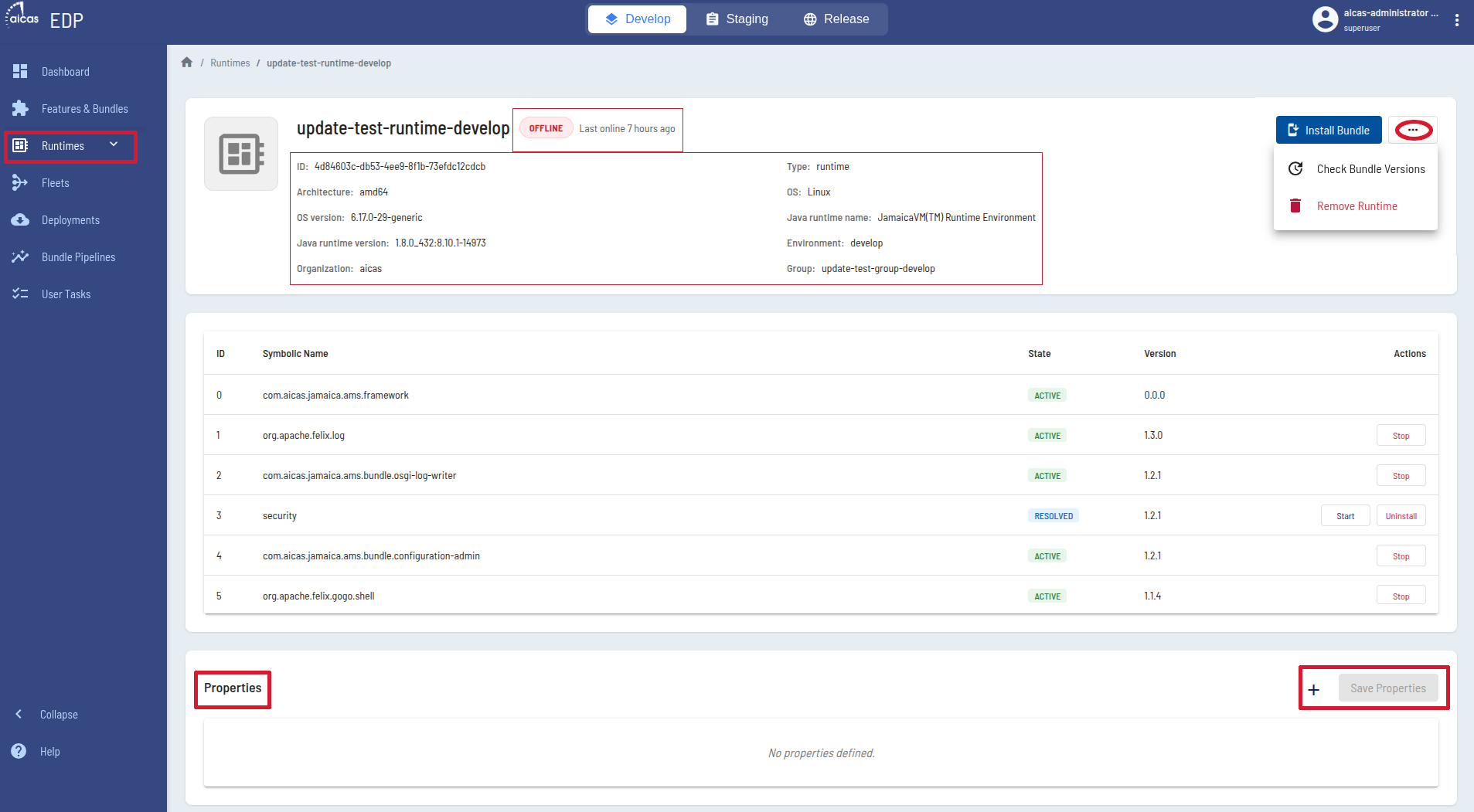
Inspect a selected runtime.
In this area of the portal, users can install new bundles on the selected runtime, as well as verify the version of an installed bundle. Also at this point, users can remove runtimes from EDP. To do that, just select the runtime and follow by choosing “Remove runtime”, confirming then the action on the subsequent dialog window.
Please note:
Currently EDP does not provide isolation between users’ runtimes when removing them. That means, users can remove any runtimes available in the environment defined in their permission profile, independently of who created them, or whether they are being used. This should be considered when defining roles.
Runtime Groups
A secondary menu point lists the available runtime groups and allows to edit existing groups and create new ones. Groups can help users with managing their environments, for example by simplifying the process of parallel pushing a feature on multiple runtimes.
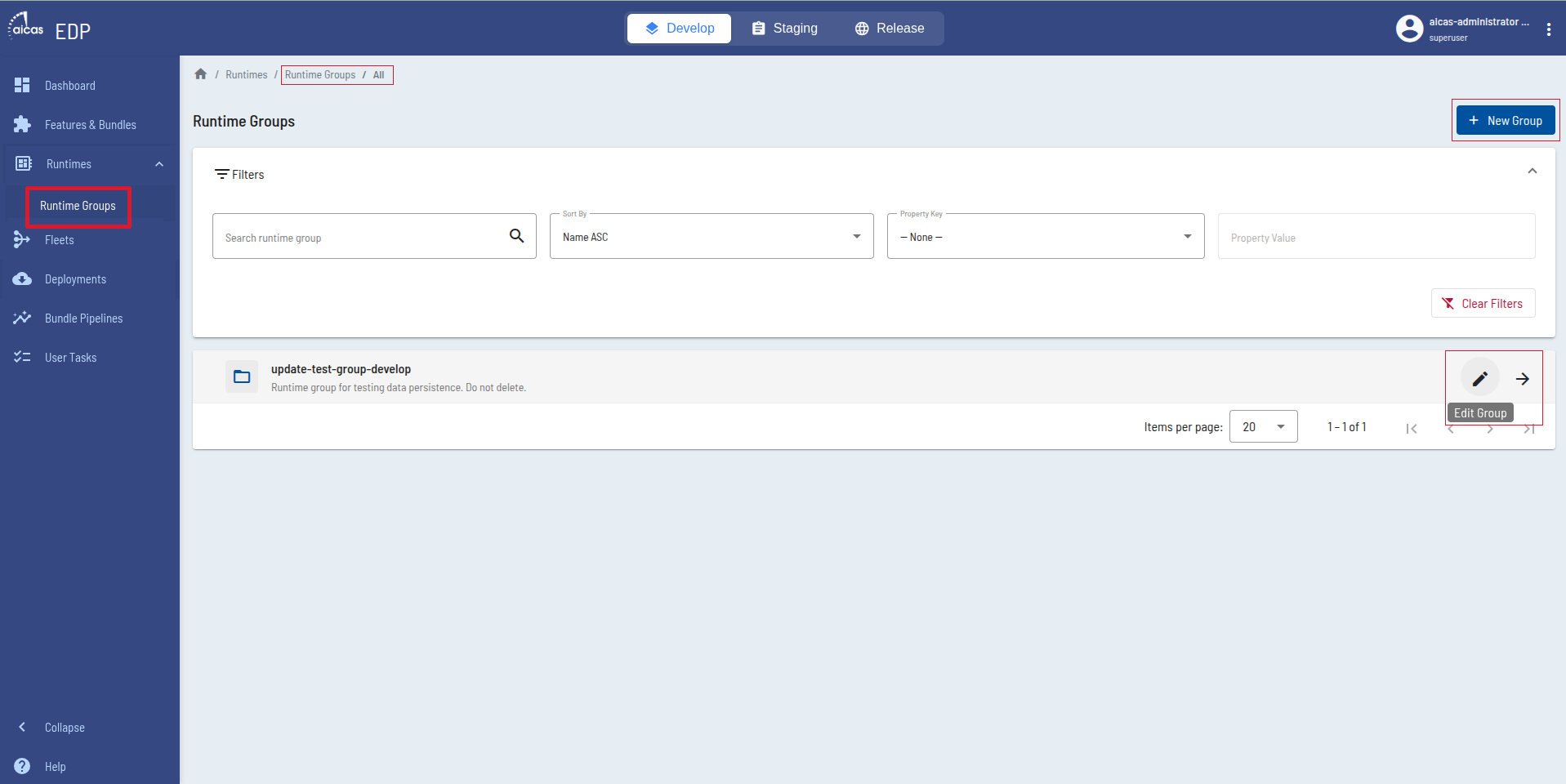
Create or edit runtime groups.
Once an item is selected from the list, users can either delete the group or edit its information, properties and components (single runtimes or other runtime groups). To add new members to an existing group, just press “+” in the item listed as available.
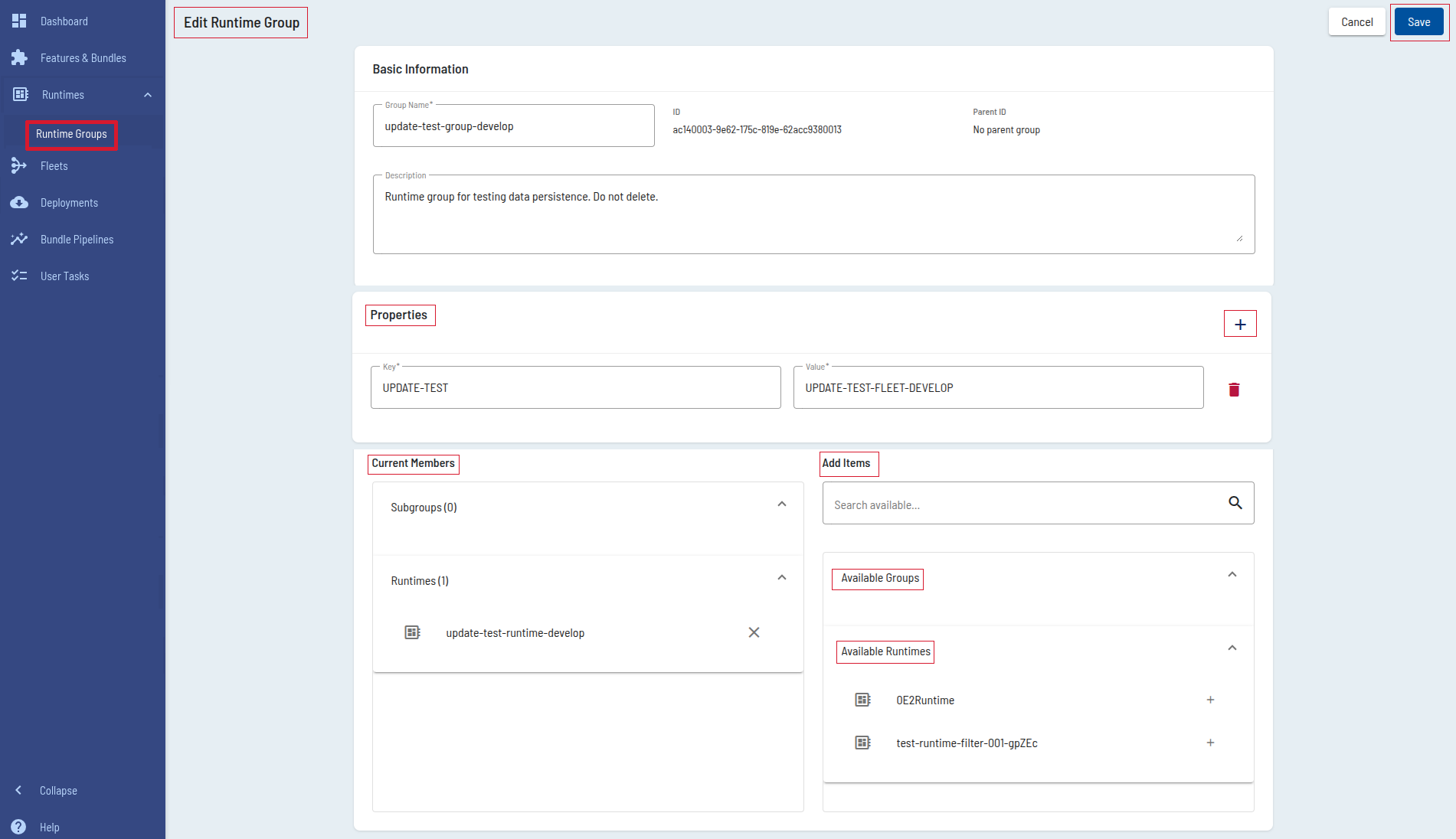
Edit properties and add components to a runtime group.
The definition of properties is important to accentuate aspects and values that are central to identify groups, as well as single runtimes. Through properties, runtimes and groups can be selected, combined and managed. In fact, filtering by properties is the best way to match components to a group.
The value of those properties is also the way to dynamically associate - or disassociate - runtimes from fleets. For more information, see this section.
Status and Type
The runtime status reports if the instance is online or offline. By starting a device which is connected to the cloud, its status will show online; the shutdown will switch it to offline.
Runtimes are associated to AWS “Thing” types. This allows EDP to store description and configuration information that is common to all runtimes associated with the same type.
On the “Thing” type
A “Thing” is defined in AWS IoT as a representation of a specific physical or logical entity. It can be a physical device or sensor; it can also be an instance of an application or a physical entity that does not connect to AWS IoT but is related to other devices that do. <https://docs.aws.amazon.com/iot/latest/developerguide/thing-types.html>
The use of a standard type (in EDP’s case, “device”) simplifies resource management by providing consistent registry data for runtimes that share the same type. On the other hand, types provide “Things” with a common set of attributes that describes identities and capabilities. Currently the type “device” is automatically predefined for all new runtimes.
Registering a New Device
aicas can support customers by registering devices and providing certificates for them. However, in case of EDP users with an own AWS account, their admins will assume these tasks. More information about connecting runtimes, and a complete, step by step, example is given here.
After registration procedures, it is possible for administrators to inspect and eventually edit attributes of devices directly in the AWS IoT services portal.
Registration and Provisioning
The EDP Client and a provisioning script are components that play a central role in provisioning and connecting new runtimes to EDP.
When in the Runtimes area, users will see the button Connect Runtime.
Once clicked, three possibilities are offered: Either the download of the
Provisioning Script package, or the download of the pre-configured
Client Bundle, or the combination AMS + Client bundle.
For users of aicas’ JamaicaAMS, Apache Felix and Equinox, choosing the provisioning script facilitates the configuration and reduces manual tasks. The script downloads the necessary certificates and properly installs the EDP client bundle, in one or in several runtimes at once.
To have multiple provisioning, users are required to adapt a CSV file included in the EDP distribution package. More information on this can be found in section Connecting Devices.
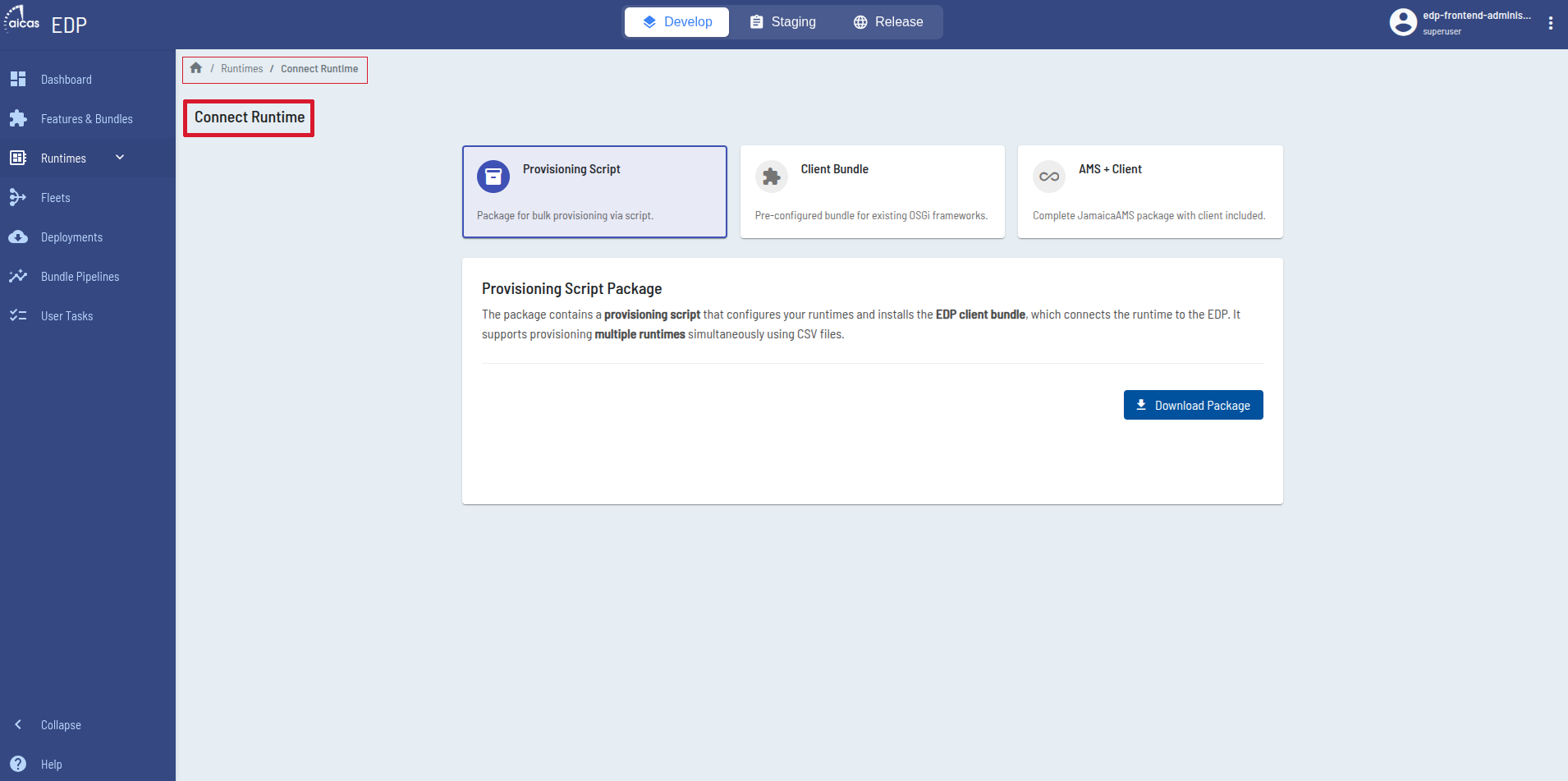
Option 1 supports provisioning multiple runtimes using CSV files.
By choosing to download just the client bundle, responsible for
establishing the connection to the backend, users will get a pre-configured
bundle that comes with all settings, certificates and properties required by EDP.
All they need to do is enter a runtime name and click on Download. The .jar
file is prepared and downloaded, and the client is then ready to be installed
in the runtime with the OSGi-based framework of choice.
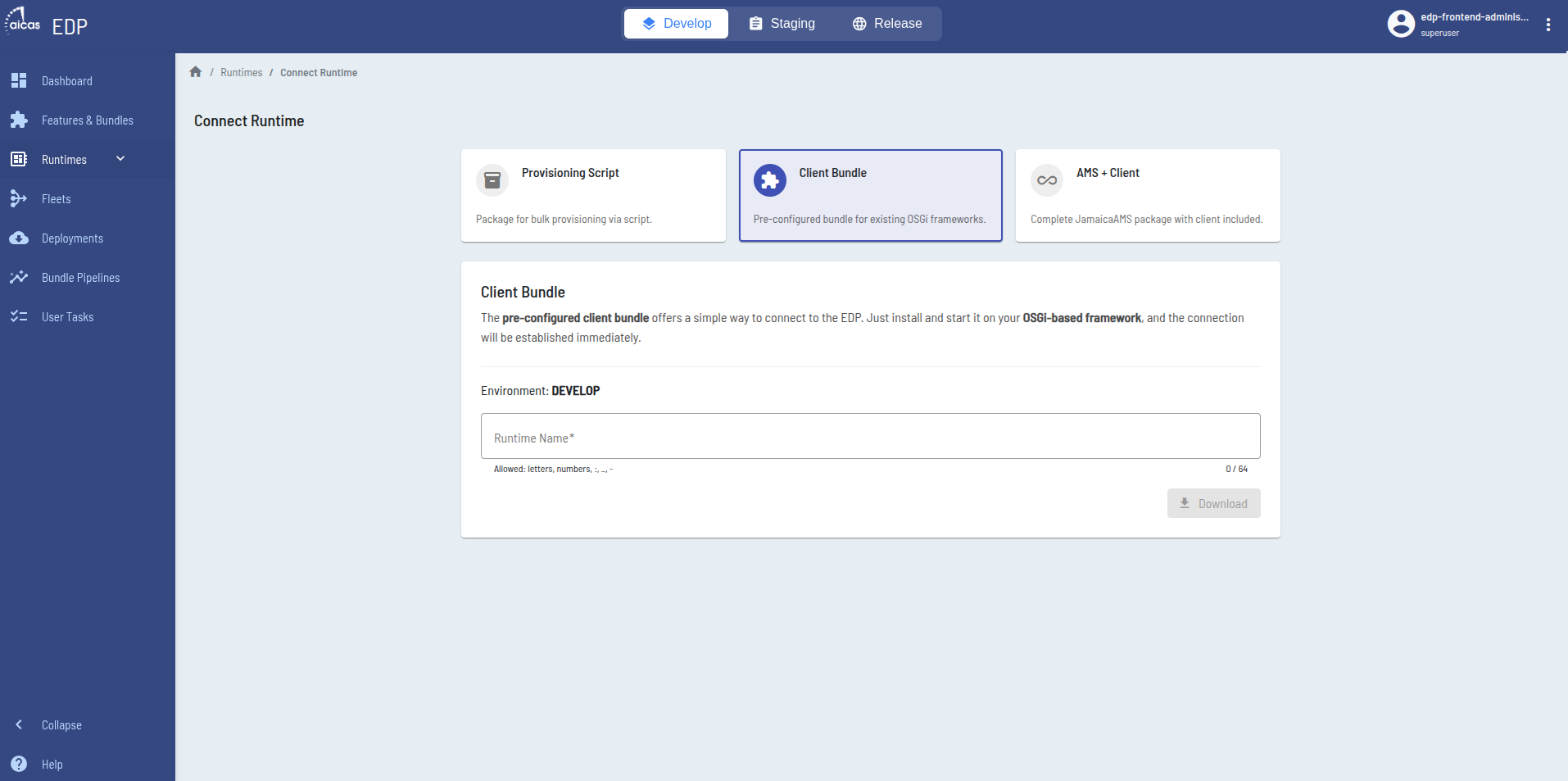
Option 2 downloads just the pre-configured EDP client.
Finally the third option allows users to download the OSGi framework already coupled with the pre-configured client bundle. In this case, users enter a runtime name, the operating system, architecture and version of the framework.
Currently this option is only available for aicas’ JamaicaAMS, and customers that have opted to link their customer accounts will be offered to choose from a list of licensed AMS versions.
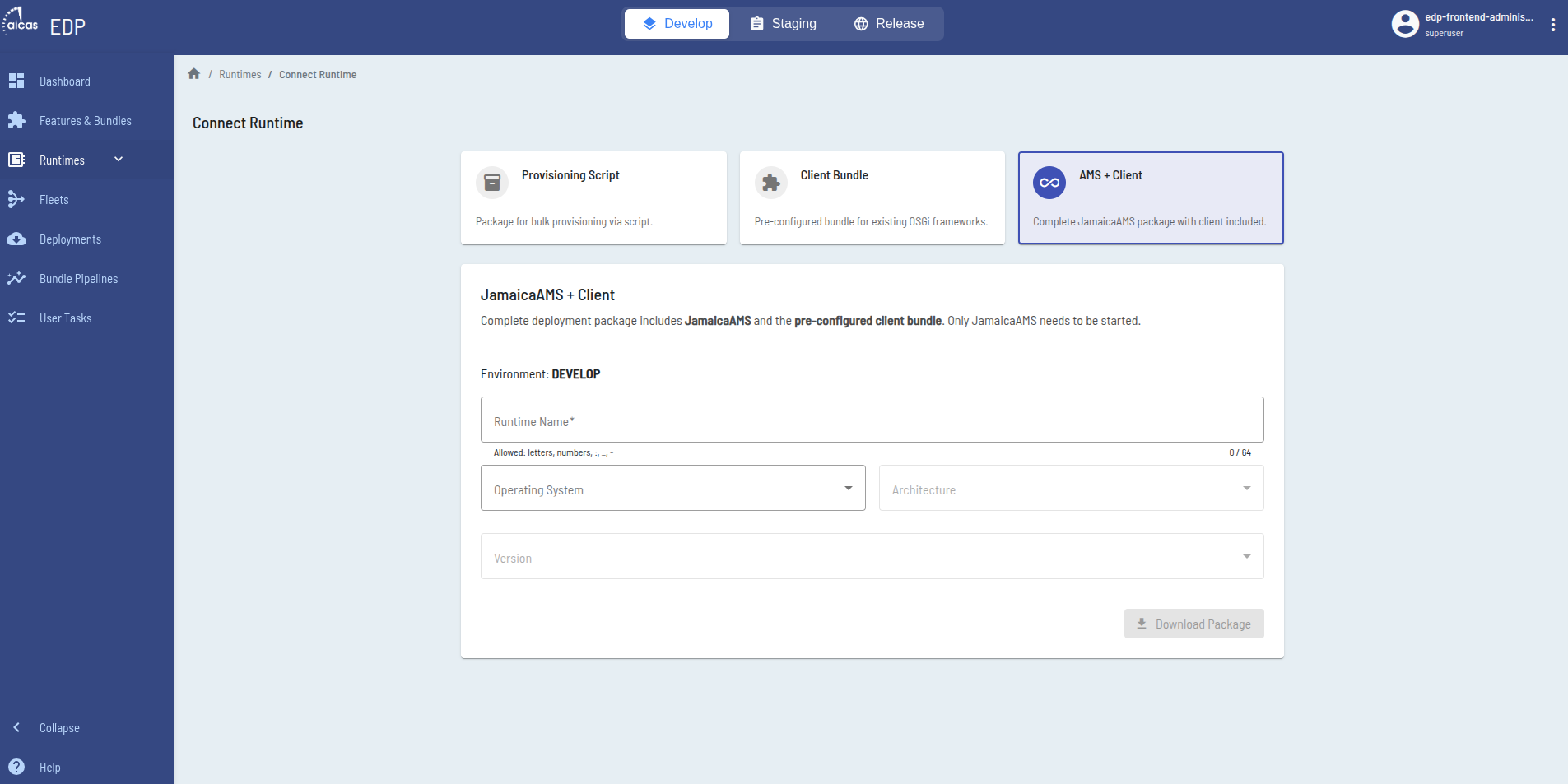
Combo-Download: AMS framework plus the EDP client.
Fleets
An extension of the Runtimes view is offered under Fleets. Fleets are non-hierarchical groupings that define their contained individual runtimes and runtime groups by the use of property filters.
When choosing the menu option Fleets, users can define these components, through establishing search properties that resolve the logical conditions and dynamically create them.
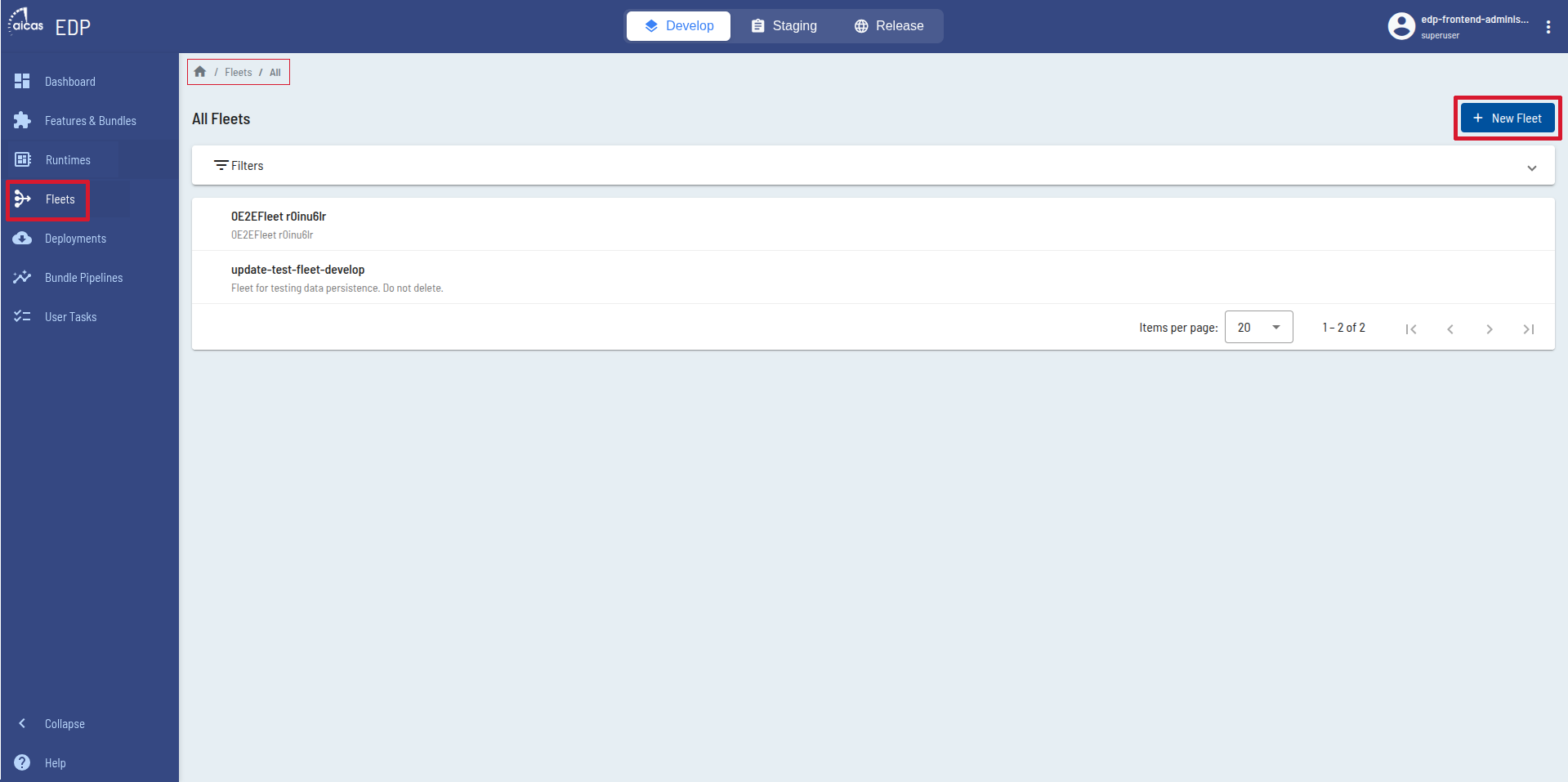
Create fleets and define properties.
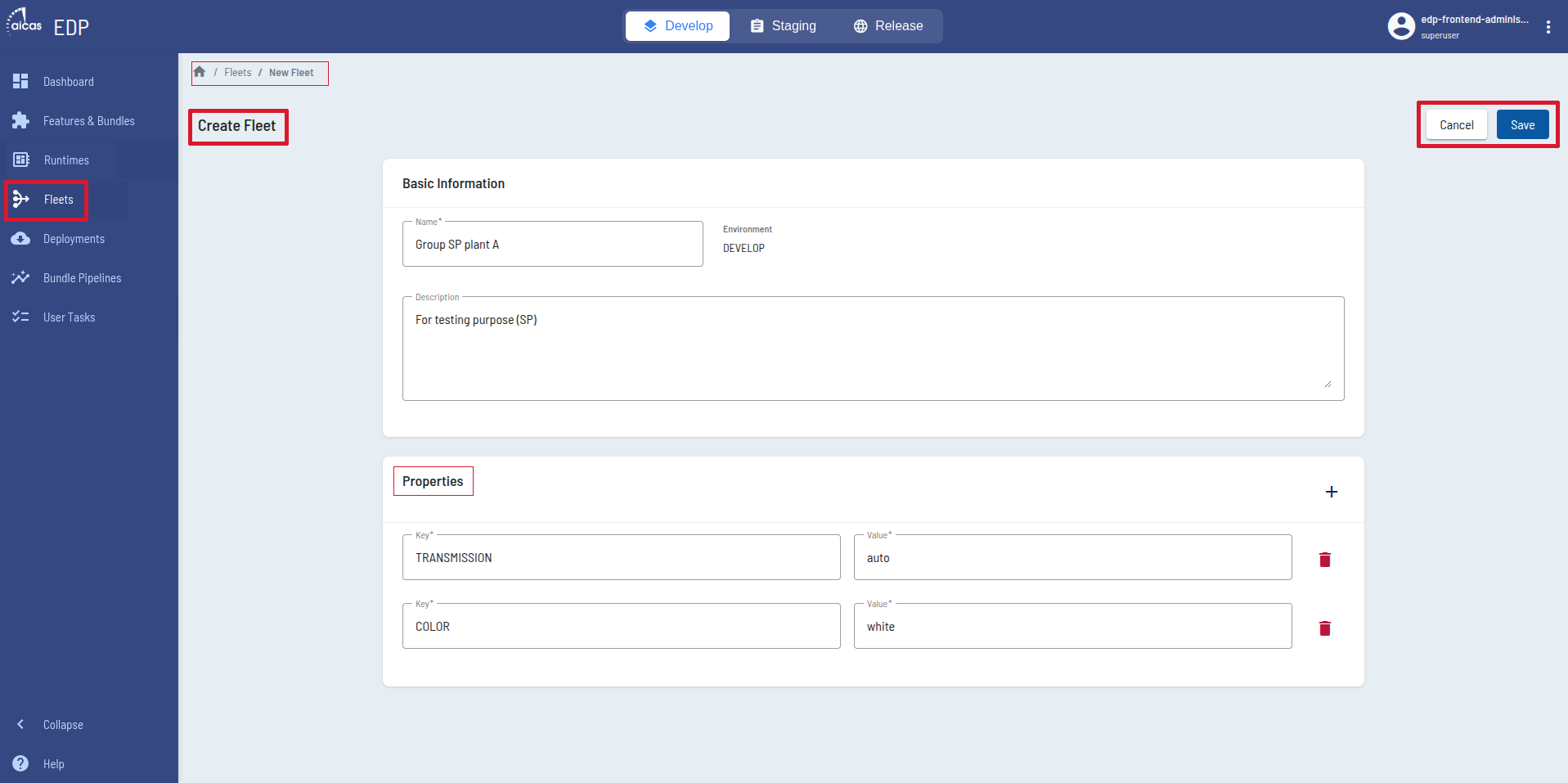
Fleet criteria consist of multiple key-value pairs.
Which runtimes and groups of runtimes meet the criteria to populate a fleet is determined when you enter and edit your runtimes and groups in EDP. Users can dynamically set properties to groups and runtimes that will match (or exceed) the properties demanded by a fleet.
Runtimes and runtime groups can simultaneously belong to multiple fleets.
Deployments
EDP offers users the possibility to register various deployments from different sources to various targets. Sources would be feature versions or artifacts, while targets are runtime, runtime groups or fleets.
For each deployment, users must enter description, source and target types. This helps to keep the overview of all deployments and improve managing them. In the list of deployments, one can follow up the status, if failed, pending or in progress.
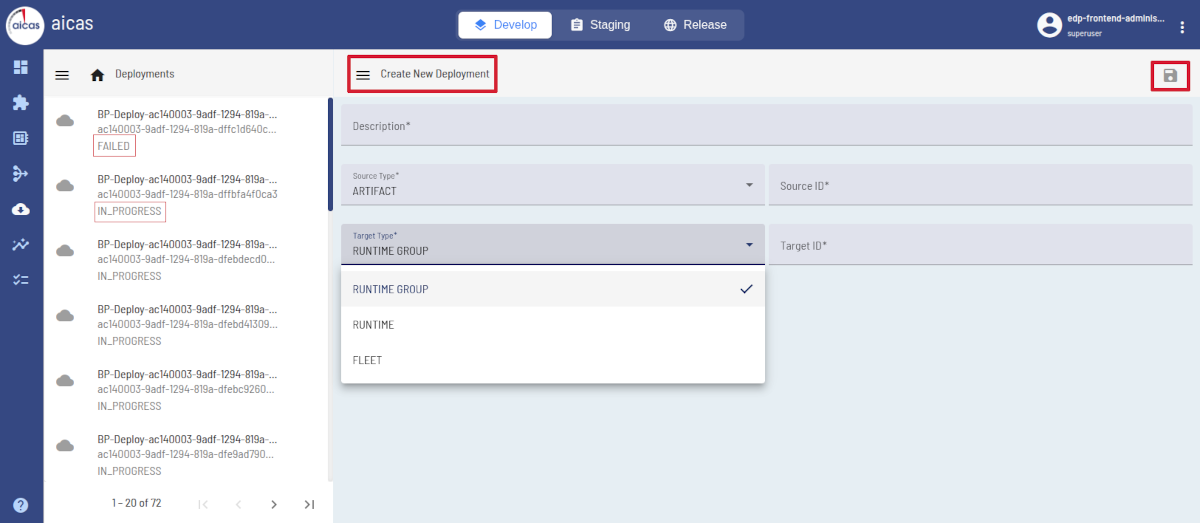
Create new Deployments; status of existing ones are indicated.
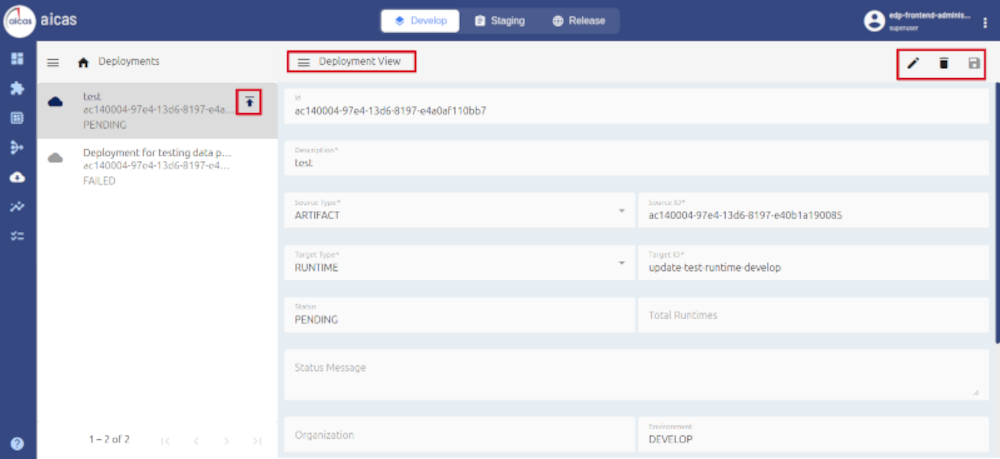
After verifying the “Deployment View”; press “upload” to send to the target.
The hamburger menu (three bars menu) in the deployment view offers action options that depend on the status. While a deployment is still “pending”, users can opt to deploy it. Once started, the deployment’s status changes into “in_progress”. Users can then cancel it and define a time interval to auto refresh the view. This menu also offers to clear history or close the development view window.
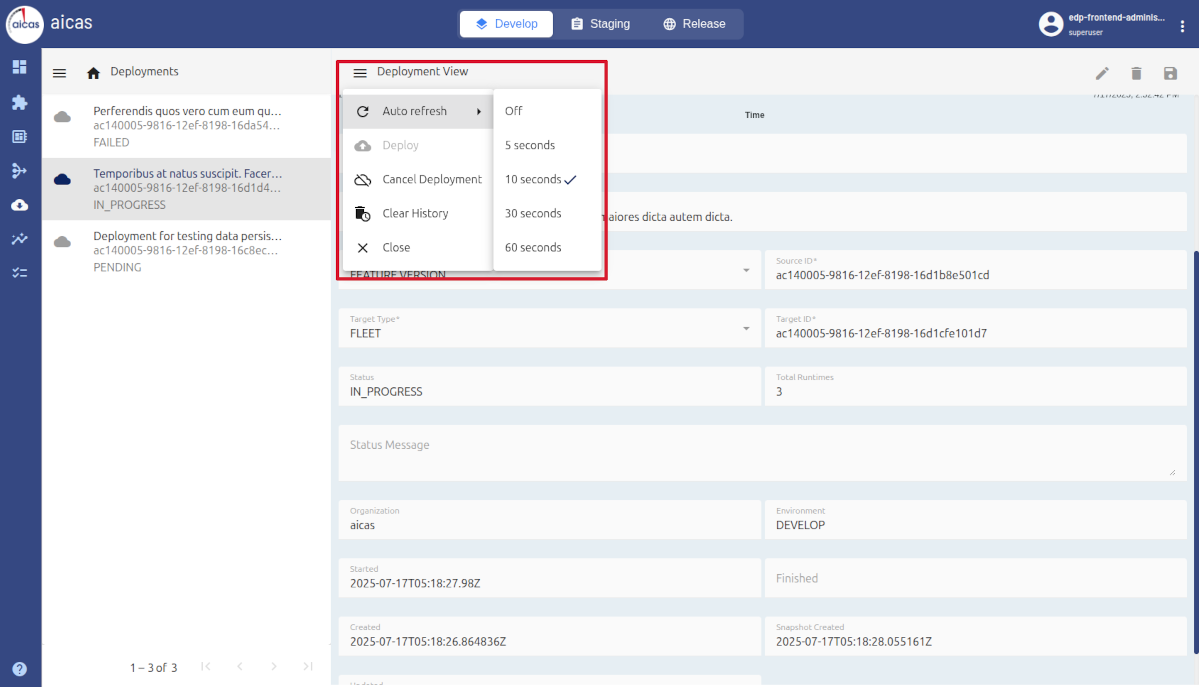
“Deployment View” offers a menu of actions, depending on the status.
EDP offers graphical views of deployments’ progress in a timeline and also a percentage view of their final performance, in terms of successful termination.
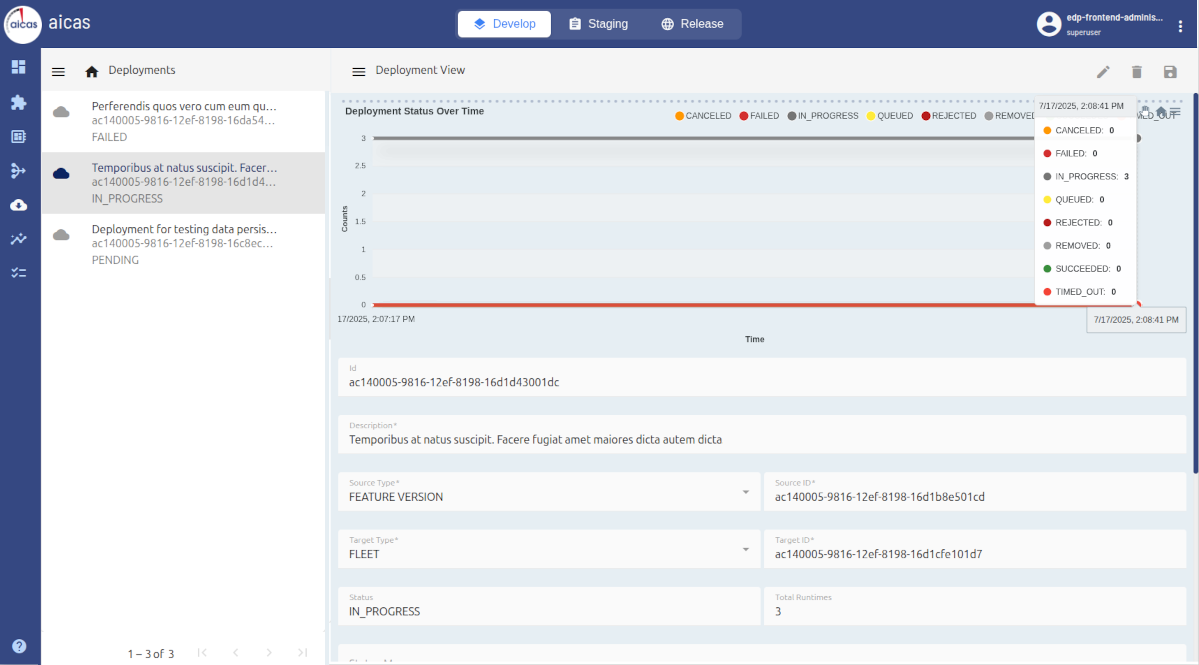
View of deployments’ progress over time.
Let us say, a specific artifact is deployed in three runtimes. At a given moment in time it could have already been successfully run in one runtime, have failed in another and be in progress on the third one. EDP would show in green, red and gray the different states of the deployment in all three units.
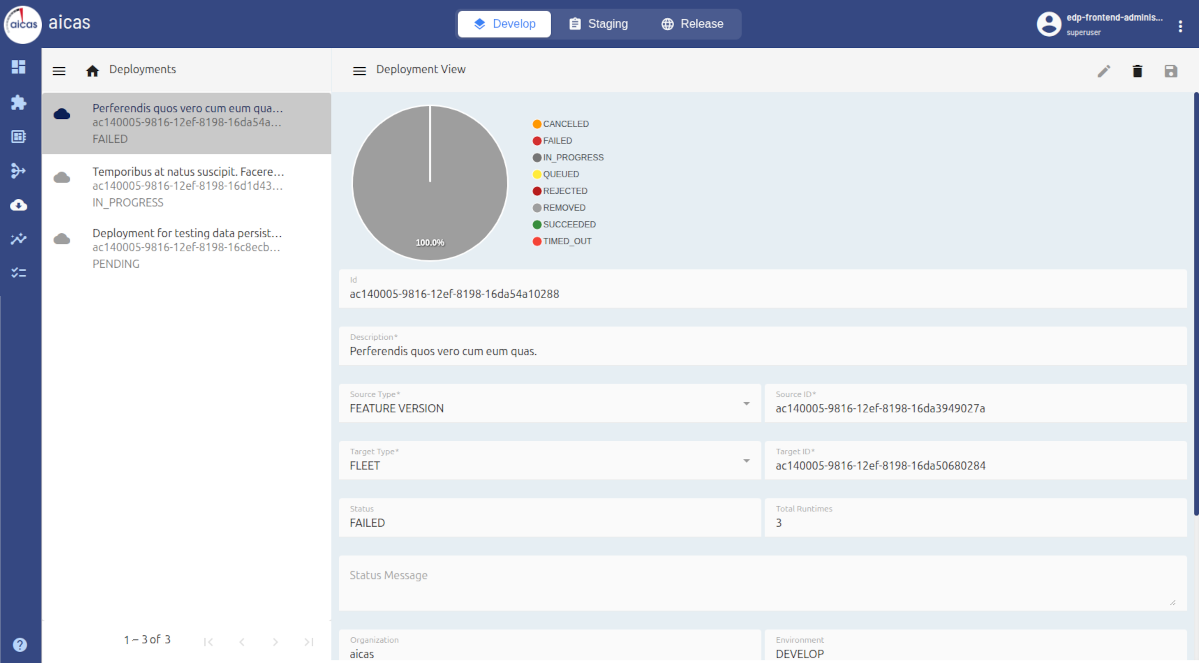
View of the percentage of successful deployments.