Managing Applications
EDP offers functionality to manage the most atomic software components that form an application: users can upload bundles and have them validated according to the OSGi specification; they can have them accelerated, installed into, or uninstalled from, runtimes. Users can also steer these components’ activities by starting or stopping them.
Central to this matter is the concept behind Features, which allow users to structure their applications hierarchically, package them in versions and deploy them in a user-friendly manner to one or more runtimes or runtime groups.
A feature consists of one or more bundles and/or other features. Because features can be combined with multiple other features, the re-usability factor is significantly enhanced. Users can build their applications as bundle groups in a very modular way.
Features can have multiple versions and all references between them and other features or bundles are done via specific versions.
EDP follows the OSGi Feature Specification.
Features & Bundles
Once in the Features & Bundles area, for each selected environment, authorized users can upload bundles, create new features and versions and group them within other features.
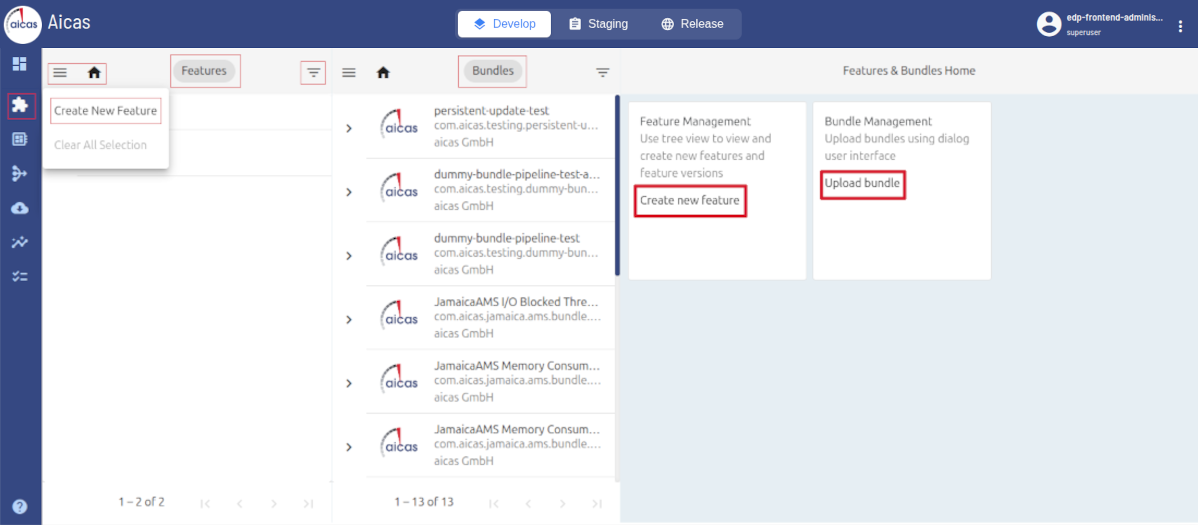
Upload bundles, create and edit features.
The graphical interface offers three distinct column areas: Features, Bundles and Home, at the right side, which displays different kind of information depending on what is selected in the two leftmost areas.
Each of those columns has extra menus: a hamburger menu (three bars menu), with options to create, select and clear the elements; a home, that displays all of such elements (features and bundles) available for the environment; and a filter menu, to search and sort in the selected category.
Users can browse and inspect a list of all available bundles in various phases, either as “snapshots” that still need to be tested or as final versions.
Note
Snapshot bundles can only be uploaded in the “Develop” environment, while full version bundles can be uploaded in “Staging” and “Release”.*
Each artifact may be available in several versions, and each version can have different system requirements. Older versions of bundles and features are kept in the list since they could still be used by runtimes or be dependencies for other bundles or features. Likewise, a bundle can have several accelerations associated with it, and those could be useful for different platform requirements.
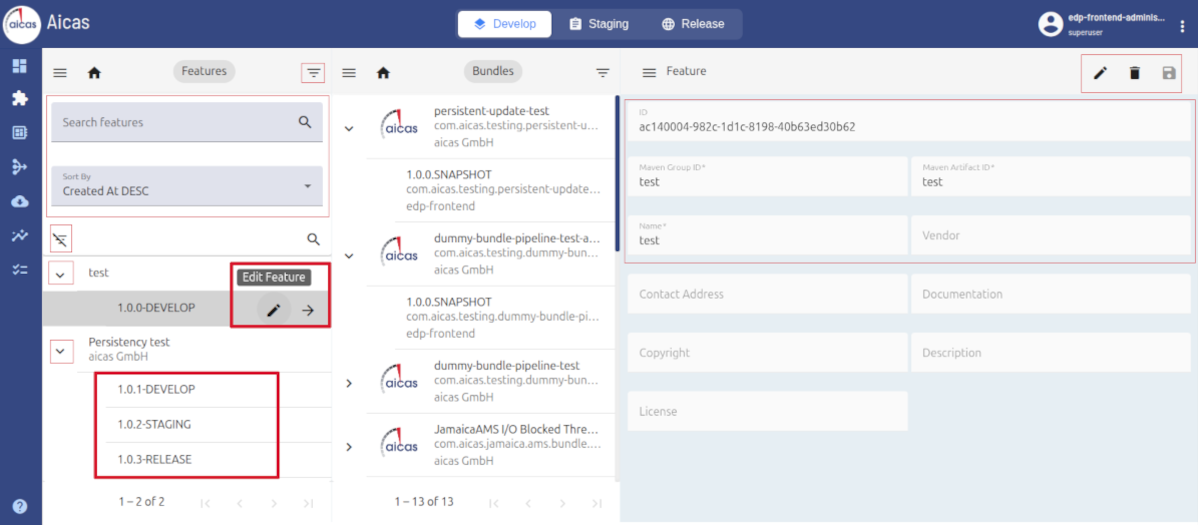
Filter, clap versions and edit information.
Populate the Feature
After creating a new feature, select it in the left column and press “+” to start an initial version, by giving it a name and choosing a status, e.g. “draft”. After saving, the new version is generated.
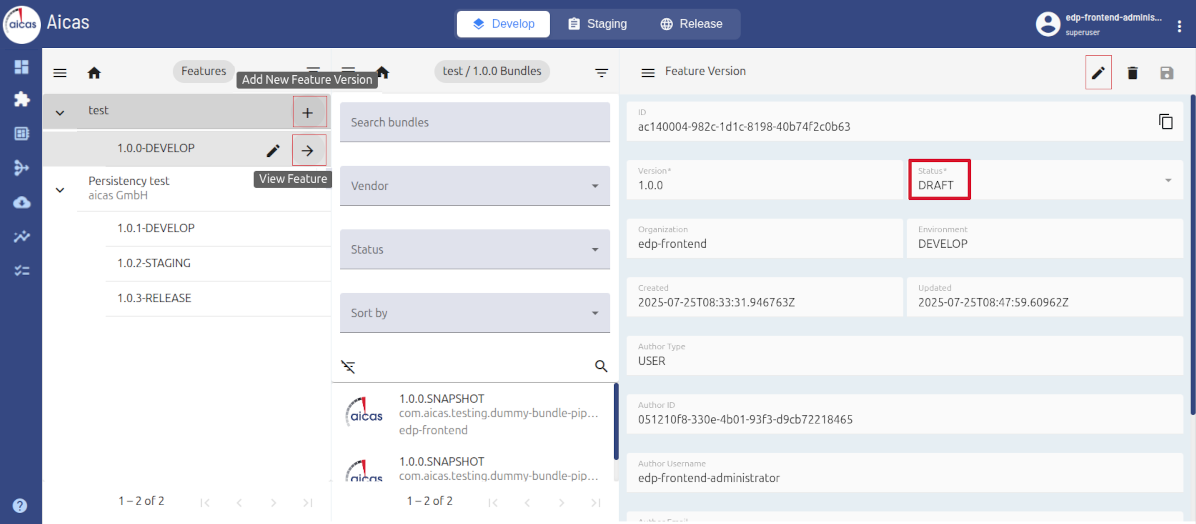
Select a feature, create and edit a version.
Now you can populate the feature version with bundles or other features. In order to do that, just select the version and click on the “pencil” icon or mark the box by its name. You will be able to search and filter through the list of available components.
Click the boxes of the corresponding bundles or features, drag and drop them into the two columns at the right side of the display. Those areas will then list the chosen elements that you wish to include in the features’s version.
If you decide to give up on any of the elements - bundle or feature - just hover over it to find the delete icon. Please note in the image below where the option “Close Editing” is placed, in case you would like to interrupt the process.
After saving, the new feature will be listed and can be unfolded to show its building blocks.
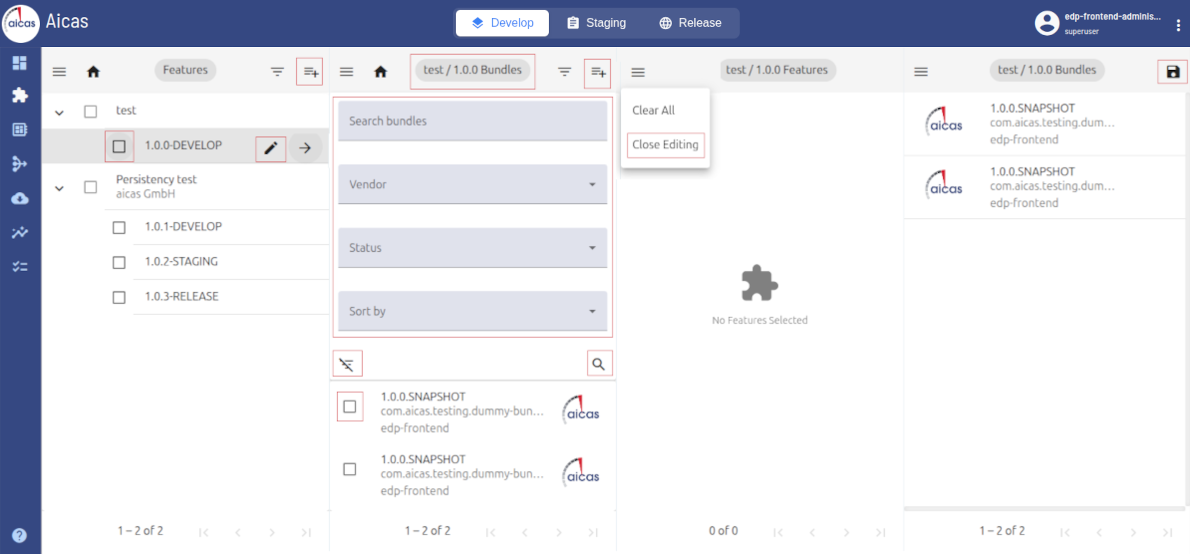
With a simple drag and drop, select the components of the new version.
Features and bundles can be aligned in a predefined (yet configurable) sequence of processing steps, referred to in EDP as bundle pipelines. Each bundle artifact that is added to EDP shall pass all required steps of a pre-configured pipeline.
State & Status
EDP permits monitoring of bundle artifacts in different ways, depending on the area of the web portal users find themselves in.
In Runtimes, users can track the OSGi life cycle state of the bundles in a specific device, like “ACTIVE” or “RESOLVED”.
Under Features & Bundles, the bundle availability list permits filtering only the components that have “published” or “draft” status, for example.
On the other hand, when a specific bundle is selected, its status can be chosen out of a drop-down menu containing the values draft, published, rejected or archived.
Once a bundle or a feature is rejected, this component can be archived, but it can no longer be deployed or selected as building block to new features.
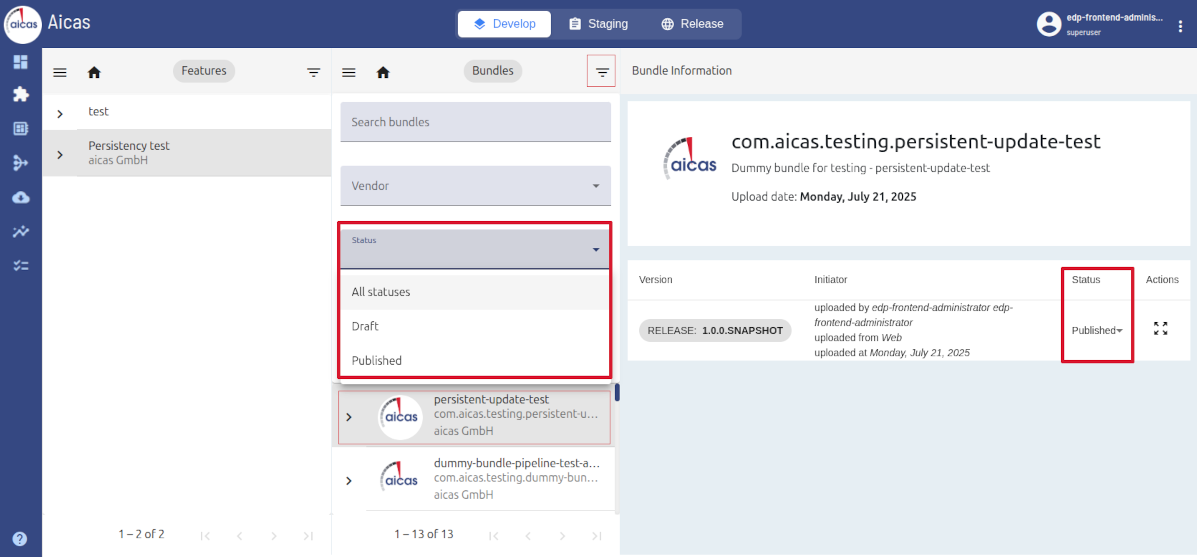
Activate a bundle and select its status. This can be a search criteria.
While users can manually change a software component’s status, automatic adjustments can be triggered out of bundle pipelines. There, status determines which action nodes are allowed: for example, the status “published” is a prerequisite for a component to be promoted, i.e. transition from develop to the environments staging or release. Similarly, in general artifacts can only be deployed into a runtime after being published. An exception is made for the environment develop, where drafts are also deployable.
Besides general states like STARTED or FINISHED, in the Bundle Pipeline area users will find information in reference of some user tasks applied to the artifacts. This information is displayed when, in a BP family, users choose to view the execution of a specific revision. It can refer to tasks around acceleration or deployment. For example: ACCELERATION.STARTED, ACCELERATION.FAILURE, ACCELERATION.TIMEOUT, ACCELERATION.SUCCESS, DEPLOYMENT.STARTED or DEPLOYMENT.FAILURE.
Bundle Acceleration
Each artifact can have accelerated versions, intended for a particular platform. The presence of an accelerated version in the bundle list shows that the bundle has successfully completed an acceleration step in the bundle pipeline and can be downloaded for use on devices of a specific architecture. By acceleration step is understood that the aicas tool JARAccelerator was run with predefined parameters to optimize the execution performance.
Acceleration
Jamaica JARAccelerator (aka JARA) is an aicas tool that takes a bundle’s JAR and produces a new, accelerated file with improved execution times for a specific target. This file incorporates the original source, complemented with a shared library containing methods in classes of the JAR that have been compiled to machine code. The library is identified with the platform for which it is intended. When a class from the accelerated JAR is loaded by an executable program running on a matching platform, the shared library is automatically linked with that program. The integration of JARA is possible only for bundles running on devices powered by aicas’ JamaicaAMS.
The definition of platforms that support bundle acceleration is a task that EDP administrators perform right after deployment. By clicking on Jara Targets in the Settings menu, users with the required permissions can define on which platforms acceleration will be possible.
By setting a JARA target, mandatory fields must be completed, like family and revision. The field classifier shows a string composed of information like platform and variant. Like other mandatory parameters, the classifier value is defined in the AWS console, during EDP deployment, in the configuration of the AWS cloud formation template. This information can be later edited or deleted.
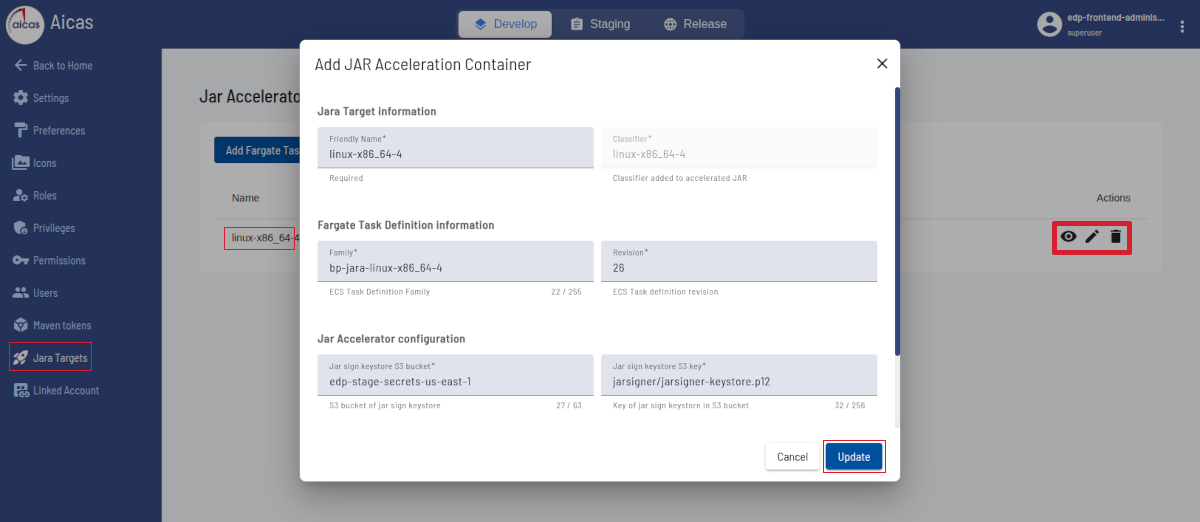
Adding a Fargate task to define JARA targets
Currently, EDP supports linux-x86_64-4 as JARA classifier, where “4” represents the Application Binary Interface (ABI) version 4. In the future other platforms are planned to allow dynamic acceleration.
Here are some relevant aspects around bundle acceleration:
By the time a bundle is uploaded in EDP, the portal automatically accelerates this bundle for x86_64, which is the default architecture for optimization purposes.
When users select a device and choose to install a bundle, EDP preferably installs an accelerated bundle, if applicable. Users can verify whether a specific bundle has accelerated artifacts by selecting it in the bundle list shown in Features & Bundles.
For a target, for which no accelerated version of the chosen bundle is available, EDP will install a regular, not accelerated version.
Updating JARA Targets after EDP Updates
When EDP is updated, the ECS Task definition for JARA targets changes automatically. As a result, the Jamaica JARAccelerator is no longer able to accelerate bundles until the JARA target configuration is also updated to match the new task definition revision.
The first step to restore bundle acceleration functionality is to find the new revision number in the AWS console, under ECS Task Definitions. Please proceed as follows:
Navigate to Settings → Jara Targets in the EDP web portal.
Locate the existing JARA Target entry that needs to be updated.
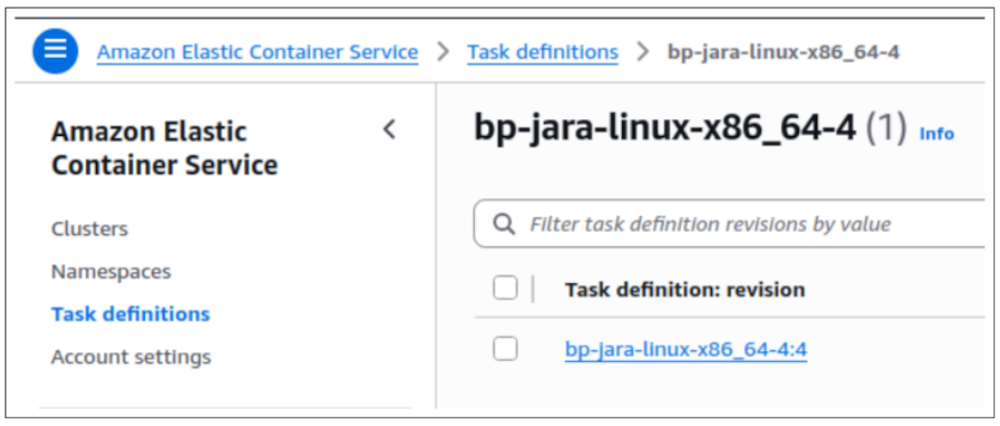
Find the new revision number in AWS / ECS Task Definitions
Then go to EDP web portal, under Settings. Choose JARA targets and click the edit button to change the target configuration.
Update the revision field to match the new ECS Task definition revision number that was created during the EDP update (seen in the image above).
Save the changes to apply the updated configuration.
Please note that
Bundle acceleration will not function until the JARA Target revision is updated to match the current ECS Task definition. Existing bundles that were previously accelerated will remain functional, but new bundle uploads will not be accelerated until this configuration is corrected.
After updating the JARA Target configuration, newly uploaded bundles will resume automatic acceleration for the configured platform targets.
Uploading a Bundle in Web
To upload a bundle in EDP’s web portal, access Features & Bundles and choose the
Upload option. After a bundle is selected, EDP will access its manifest, expecting to find
the OSGi headers symbolic name and version, which are considered mandatory. In case those
headers are missing, EDP will reject the JAR as being a non valid OSGi bundle.
Using Maven
Sometimes users who are developing bundles from their local environment setups, for example an IDE like Eclipse or IntelliJ, might want to use Maven to deploy their bundles directly to EDP. To do that, users must start by creating a token.
In the menu Settings, choose Maven tokens and “Add token”. Then enter a name and
expiration date. Click Save and your personal token will be generated. This token needs to
be stored, since it will be used by Maven for the secure authentication operations required to
upload bundles.
Maven Configuration
Once the token is created, it is necessary to configure Maven. This can be done by entering all Maven-related information in the IDEs’ Maven plugin settings. Another option would be to use the command line interface, as shown here.
In this case, Maven’s default settings need to be properly changed. Add the following to your Maven settings.xml, replacing XXX with the proper values.
<settings>
   <servers>
     <server>
       <id>jedp</id>
       <configuration>
         <httpHeaders>
            <property>
              <name>jedp-mvn-user</name>
              <value>XXX</value>
            </property>
            <property>
              <name>jedp-mvn-org</name>
              <value>XXX</value>
            </property>
            <property>
              <name>jedp-mvn-token-name</name>
              <value>XXX</value>
            </property>
            <property>
              <name>jedp-mvn-token</name>
              <value>XXX</value>
            </property>
         </httpHeaders>
       </configuration>
     </server>
   </servers>
</settings>
If you do not want or cannot use the global settings, you can provide settings.xml with the following mvn command:
mvn -s <path>/settings.xml -U clean deploy
Changing pom.xml
When Maven is used, each bundle is packed with a pom.xml file that specifies its properties and dependencies. Change the OSGi bundle’s pom.xml accordingly, updating host and environment.
<project>
   <repositories>
     <repository>
       <id>jedp</id>
       <url>https://<your-company-edp-domain>/maven/develop</url>
     </repository>
   </repositories>
   <distributionManagement>
     <repository>
       <id>jedp</id>
       <url>https://<your-company-edp-domain>/maven/develop</url>
     </repository>
   </distributionManagement>
</project>
From the point of view of developers, establishing a direct bridge between their IDEs and EDP using Maven is a faster way to upload their final artifacts.
With a single command they can clean, package and deploy a project, with no extra steps. Otherwise they would need to work on the code, build and export the jar; then go to EDP portal, choose Application, click “upload”, select the bundle and confirm. Only then the bundle would be listed in the EDP portal, reported as uploaded by the respective user.
Also in case the developer needs to upload a same bundle many times, after modifications or bug fixes, the direct IDE-EDP way speeds up the process considerably.